
Advanced
Response Extraction
Automatically pull key values out of your action's API responses and make them available to your agent throughout the entire conversation — without any extra code.
Why You Need It
By default, Meebly trims raw tool response messages from the agent's context to keep conversations fast and cost-efficient. This is fine within a single message — the agent can chain multiple actions together and pass IDs between them freely. The problem arises across messages: once the user sends a second message, those tool responses are gone from context and any IDs they contained are lost.
createOrder and returns an orderId. The user then sends a second message: "update the delivery address." By that point the tool response from the first message has been trimmed, and the agent no longer has the orderId it needs.Response Extraction solves this by capturing the values you care about the moment the action completes and persisting them in a dedicated context block that the agent can always see.
How It Works
- 1. You configure extraction rules on an action, telling Meebly which paths in the response to capture and what to name them.
- 2. When the action runs, Meebly reads the response and extracts the values you specified.
- 3. The extracted values are stored in a Tool History Context block that is injected into every subsequent agent prompt for the rest of the conversation.
- 4. The agent can reference those values naturally — e.g. "use the
orderIdfrom the previous step" — without you writing any glue code.
Configuration
Response Extraction is configured per action. Open any action in the Meebly dashboard, navigate to the Payload tab, and select Response Extraction from the tab row at the top of the Schema panel.
Inside you will find two collapsible sections: Scalar Fields and Collections. You can use one or both on the same action.
Scalar Fields
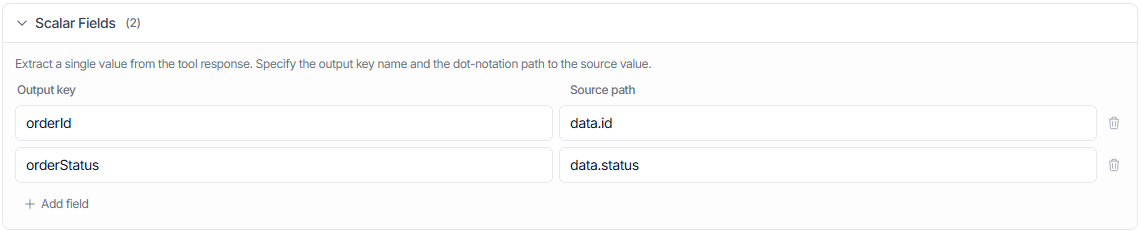
Use Scalar Fields to extract a single value from anywhere in the response. Each row has two inputs:
- Output key — the name the agent will use to refer to the value (e.g.
orderId) - Source path — the dot-notation path to the value inside the JSON response (e.g.
data.id)
For example, if your createOrder action returns:
{
  "data": {
    "id": "ord_8821",
    "status": "pending",
    "total": 59.99
  }
}
You would add a Scalar Field row with:
After the action runs, the agent's context will contain:
[Tool History Context]
createOrder → orderId: ord_8821
createOrder → orderStatus: pending
The agent can now reference ord_8821 in any subsequent action for the rest of the conversation.
Collections
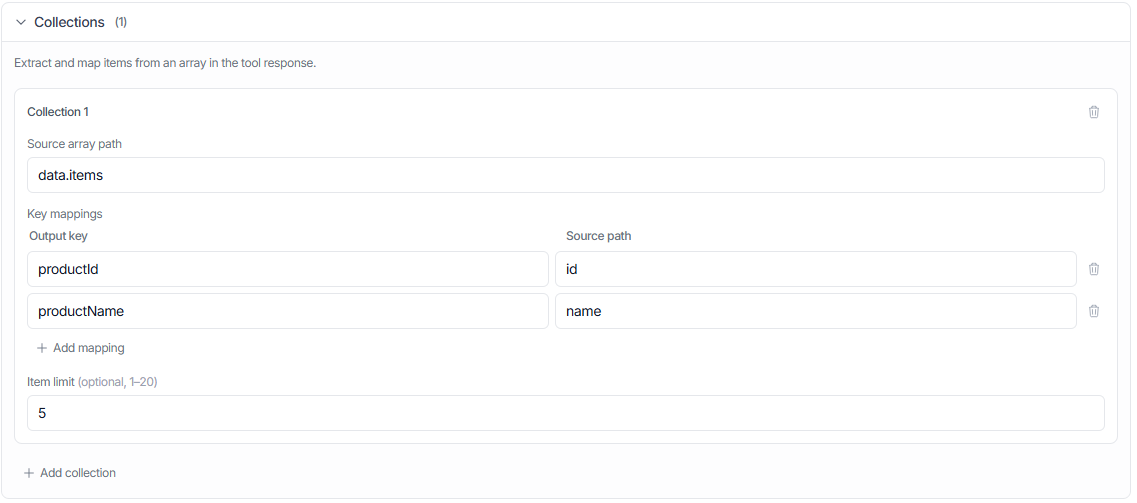
Use Collections when the response contains an array and you want to extract a mapped summary of each item — for example, a list of product IDs and names from a search result. Each collection entry has three inputs:
- Source array path — dot-notation path to the array in the response (e.g.
data.items) - Key mappings — one or more rows that map an output key to a path relative to each array item (e.g.
productId→id) - Item limit — optionally cap the number of items captured (1–20). Useful to avoid bloating the context with large lists.
For example, if your searchProducts action returns:
{
  "data": {
    "items": [
      { "id": "prod_01", "name": "Blue T-Shirt", "price": 19.99 },
      { "id": "prod_02", "name": "Black Hoodie",  "price": 39.99 },
      { "id": "prod_03", "name": "White Cap",     "price": 14.99 }
    ]
  }
}
You would configure a collection like this:
After the action runs, the agent sees:
[Tool History Context]
searchProducts → items:
  [0] productId: prod_01 | productName: Blue T-Shirt
  [1] productId: prod_02 | productName: Black Hoodie
  [2] productId: prod_03 | productName: White Cap
The agent can now pass prod_02 to an addToCart action when the user says "add the hoodie to my cart" — even many turns later.
End-to-End Example
Here is a complete shopping assistant scenario that uses both Scalar Fields and Collections across two actions.
Action 1 — searchProducts
Configured with a Collection:
Action 2 — createOrder
Configured with Scalar Fields:
A conversation might look like this:
User:  Show me some hoodies.

Agent: [calls searchProducts("hoodie")]
       → Extracted: prod_02 = Black Hoodie, prod_05 = Grey Hoodie

Agent: Here are two options: Black Hoodie ($39.99) and Grey Hoodie ($34.99).
       Which would you like?

User:  The black one.

Agent: [calls createOrder(productId: "prod_02")]
       → Extracted: orderId = ord_8821, orderStatus = pending
                    (prod_02 came from the earlier Tool History Context)

Agent: Done! Your order for the Black Hoodie has been placed (order #ord_8821).

User:  Actually, can you cancel it?

Agent: [calls cancelOrder(orderId: "ord_8821")]
                    (ord_8821 came from the Tool History Context)
Notice that at no point did the user have to repeat an ID. The agent resolved them from context automatically.
Tips & Limits
- Only enable it when you need it. Response Extraction is disabled by default on every action. The extracted data is injected into the agent's context on every subsequent turn, which adds tokens to every LLM call for the rest of the conversation. Only enable it on actions whose output contains IDs or values that a future action in the same conversation will need.
- Paths are dot-notation only. Use
data.order.idto navigate nested objects. Array indexing is not supported in source paths — use a Collection for arrays instead. - Keys are merged, not replaced. If the same action runs twice in a conversation, the second run's extracted values overwrite the first for that action. Values from different actions are kept separately.
- Only configure what the agent needs. Extracting every field in a large response bloats the agent's context and can reduce response quality. Stick to IDs and labels that future actions will actually use.
- Collections have an item limit of 1–20. Set this to the maximum number of items the agent realistically needs to reference. If omitted, all items in the array are captured.