
Advanced
Human HandoffPremium
Let your team step into any AI conversation and reply directly to customers.
Overview
When Human Handoff is enabled on an agent, the agent can recognize when a conversation needs a person — for example, when it cannot resolve an issue or when a customer asks to speak to someone — and automatically escalate it. Your team sees all escalated conversations in the Handoffs tab, where they can read the full conversation history, reply directly, and close the conversation when done.
Replies are delivered through the customer's original channel — WhatsApp, Slack, or the embedded chat widget — so the experience is seamless from the customer's perspective.
Enabling Human Handoff
Human Handoff is configured per agent. Open the agent you want to enable it on and toggle on Human Handoff in the agent settings.
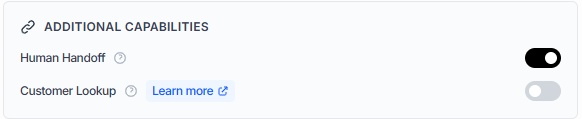
Once enabled, the agent will automatically escalate conversations to your team when it determines a human is needed. You can describe escalation criteria in the agent's system instructions — for example, when a customer asks to speak to someone, when an issue cannot be resolved after several attempts, or when a billing dispute arises.
Team members can also manually take over any conversation at any time from the Handoffs tab, regardless of whether the agent requested it.
Agent Availability
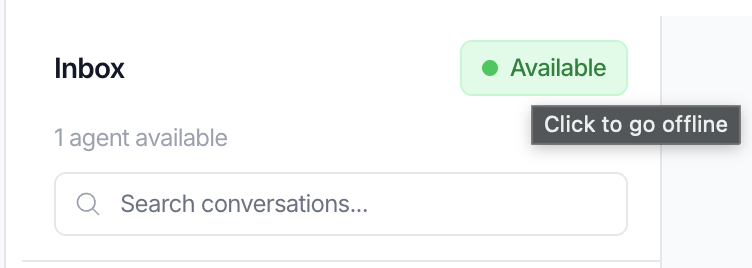
Before the AI can queue a conversation for your team, at least one team member must mark themselves as Available. This prevents handoffs from being queued when no one is around to respond.
Open the Handoffs tab and click Go Available in the top-left corner. Your status will switch to Available and a count of online agents will be shown. Click again to go offline.
The Handoffs Tab
The Handoffs tab in the Meebly dashboard shows all conversations that have been escalated or are actively being handled by your team. Conversations are organized into tabs so you can quickly find what needs attention:
| Tab | Shows |
|---|---|
| Pending | Conversations waiting to be picked up by a team member. |
| Mine | Conversations you have taken over and are actively handling. |
| Claimed | All conversations currently assigned to any team member. |
| Resolved | Closed conversations. |
| All | Every conversation regardless of state. Supports additional filtering by status or channel. |
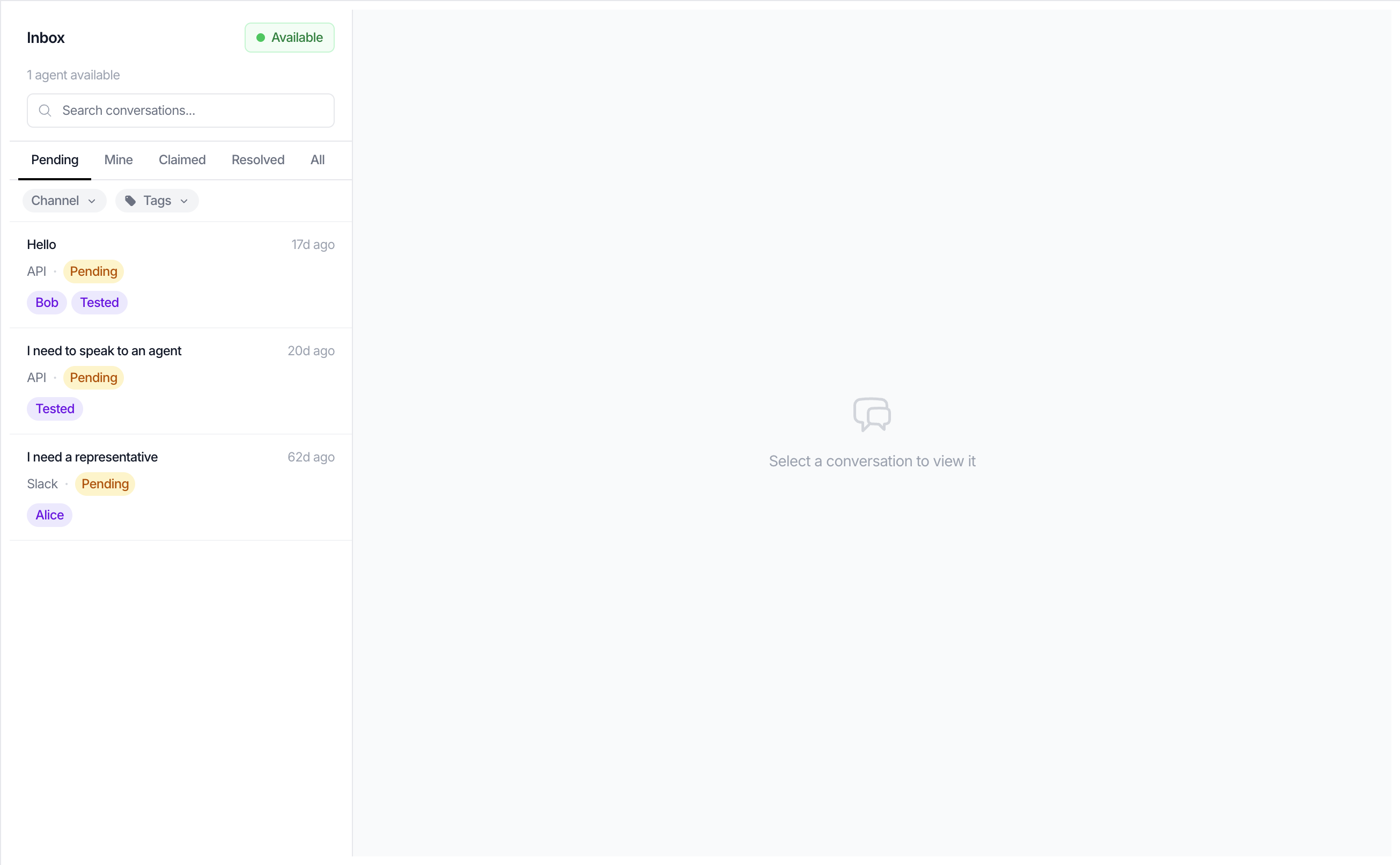
Selecting a conversation shows the full message history, including everything the AI said before the escalation.
Conversation States
Each conversation has a status that reflects where it is in the handoff lifecycle.
| State | What it means |
|---|---|
| AI | The agent is handling the conversation normally. |
| Pending | A handoff has been requested. The AI has stopped responding and the conversation is waiting for a team member to pick it up. |
| Human | A team member has taken over and is actively managing the conversation. The AI will not respond. |
| Resolved | The conversation has been closed. |
Taking Over a Conversation
Click Take Over on any conversation to become the active agent. The AI immediately stops responding and you can start sending messages. Only one team member can hold a conversation at a time.
Sending Messages
Type your reply and send it. Your message is delivered to the customer through the same channel they used to start the conversation — WhatsApp, Slack, or the chat widget. The message also appears in the conversation history for context.
Tags
Tags are labels you apply to a conversation thread to categorize or prioritize it — for example urgent, billing, or vip. They appear as colored pills on thread cards in the conversation list and are visible to all team members.
To manage tags on a conversation, open the thread. The tag editor sits in the conversation header, just below the channel and date line. Click Add tag to add a new label, or click the × beside any existing tag to remove it. Changes save instantly.
Customer Profile Panel
If your organization has Customer Memory enabled and the conversation has an identified customer, a See Profile button appears next to the customer ID in the conversation header. Clicking it opens a panel to the right of the conversation showing everything stored in that customer's profile:
- Facts — A read-only list of facts the agent has learned or that were imported for this customer.
- Tags — The customer-level tags attached to their profile, displayed read-only.
The panel is read-only. To edit a customer's profile, go to the Customer Memory tab. The panel closes automatically when you switch to a different conversation.
Filtering Conversations
The conversation list supports three filter dropdowns that sit just below the search bar:
| Filter | Available on | What it does |
|---|---|---|
| Channel | All tabs | Narrow to conversations from a single channel: WhatsApp, Slack, iFrame, or API. |
| Status | All tab only | Filter by conversation state: Pending, Human, Resolved, or AI. |
| Tags | All tabs (when tags exist) | Select one or more tags. Returns conversations that have any of the selected tags. The dropdown only appears once at least one thread has a tag. |
Filters stack — you can combine channel, status, and tag filters at the same time. The search bar also works alongside filters. To clear a filter, open the dropdown and click Clear (tags) or the current selection (channel / status).
Managing Conversations
Once you're done with a conversation you have two options:
- Return to queue — Releases the conversation back to pending so another team member can pick it up. The AI does not resume.
- Resolve — Closes the conversation entirely. No further messages are sent or received. New messages from the customer will start a new thread.